
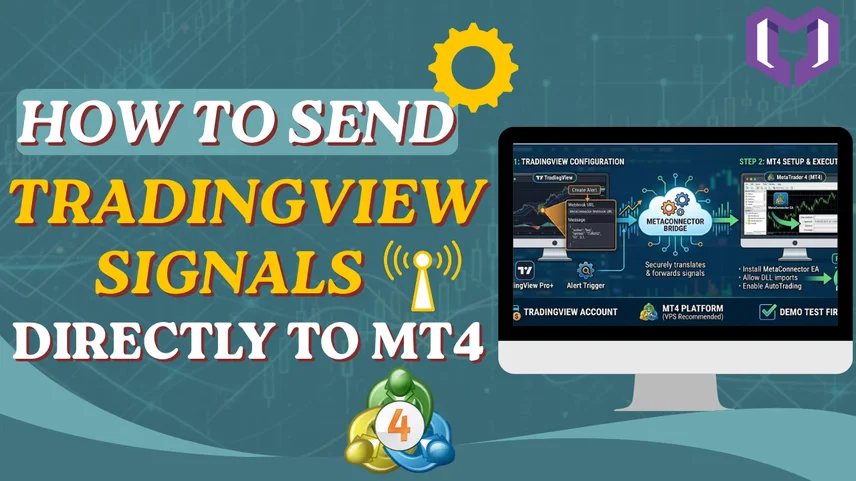
TradingView serves as the leading platform for charting and technical analysis but does not support direct trading from MetaTrader 4 (MT4). The trading process requires all traders to manually transfer their trades because automated systems do not function properly, which results in slower operations that are prone to mistakes while failing to keep up with current market developments.
The solution? MetaConnector. The TradingView technical analysis system lets you create automated trading systems through a webhook-based bridge which executes trades on your MT4 platform.
MetaConnector functions as a dedicated bridging solution which provides safe translation between TradingView alert systems and your MT4 terminal. The TradingView alert system opens the door for MetaConnector to send a command which enables your MT4 terminal to start, stop, or control trading activities within one second.
Prerequisites
Before you begin, ensure you have the following:
Step 1: Install the MetaConnector EA in MT4.
Crucial: Make sure you enable "Allow DLL imports" and "Allow live trading" within the EA settings. You must activate the "AutoTrading" button which appears at the top of the MT4 platform.
Step 2: Configure TradingView Webhooks
Paste the unique webhook URL provided by your MetaConnector dashboard. This URL connects your TradingView account to your specific MetaConnector instance.
Step 3: Format Your Alert Message
The magic happens here. The alert message must be in a recognised MetaConnector format so it knows what to do.
In the Message box of your TradingView alert, use the JSON format provided by your MetaConnector documentation. A typical example looks like this:
{
"action": "buy",
"symbol": "EURUSD",
"lot": 0.1,
"sl": 1.0500,
"tp": 1.1000
}
Note: Please verify exact syntax for your particular version of MetaConnector, as different updates may require slightly different field names.
The correct syntax for your specific MetaConnector version must be verified through testing because its different updates require distinct field names.
Q: Do I need to keep TradingView open?
A: No. Once the webhook URL is saved in your alert settings, TradingView’s servers send the signal to MetaConnector’s servers even if your browser is closed.
Q: Is MetaConnector secure?
A: Yes, provided you keep your webhook URL private. Anyone with your URL could theoretically trigger signals on your account, so treat it like a password.
Q: Can I manage multiple accounts?
A: Yes, depending on your MetaConnector licence tier, you can link multiple MT4 terminals to receive signals from the same TradingView alerts.